


You can leave a Google review for a business through Google Search, Google Maps, or a direct review link shared by the business, and in most cases you will need to be signed in to a Google account. This guide walks through each method on desktop and mobile, explains what to check before you post, and covers how to edit, delete, or troubleshoot a review that has not appeared yet.
Whether you just had a great experience at a local shop or want to help a business build trust online, knowing how to leave a Google review only takes a few minutes. This guide covers every common way to do it, on both desktop and mobile, so you can pick whichever method is fastest for you. We will also look at how to leave a google review for a business when you only have a link or a QR code, and what to do if something does not go as expected.
Before You Leave a Google Review
Before posting, it helps to know a few basics so your review saves correctly the first time.
-
A Google account is required. You need to be signed in with a Google account (the same one used for Gmail, YouTube, or Android) to submit a review with a star rating and text.
-
Search for the exact business. Many businesses have multiple locations or similarly named competitors nearby. Make sure the address, phone number, or website matches the business you actually visited.
-
Reviews are tied to your Google profile. Your name and profile photo (if you have one set) will appear next to your review, unless your account settings limit what is shown publicly.
-
Be specific and honest. A short note about what you ordered, what service you used, or how staff helped you is more useful to other shoppers than a rating alone.
Once you have confirmed you have the right business page and are signed into your Google account, you are ready to use any of the methods below.
How to Leave a Google Review from Google Search
Searching directly on Google is often the quickest route, especially on mobile where the business panel appears at the top of results.
On Desktop
-
Open a browser and go to Google Search.
-
Type the business name, and its city or neighborhood if the name is common (for example, "TrustTap coffee shop Toronto").
-
Look for the business panel on the right side of the search results, which shows the name, star rating, address, and hours.
-
Click on the star rating or the "Write a review" link inside that panel.
-
A pop-up window will open where you can select a star rating from one to five and add written comments.
-
Click "Post" to publish your review.
On Mobile
-
Open the Google app or your mobile browser and search for the business name.
-
Scroll to the business info card that appears near the top of the results.
-
Tap the star rating shown under the business name.
-
Select the number of stars that reflects your experience.
-
Add a written comment if you would like to explain your rating, then tap "Post."
This method works well when a customer is already searching for the business online, whether to check hours, get directions, or compare it to similar options nearby.
How to Leave a Google Review in Google Maps
If you already have the Google Maps app open, or you want to review a place right after visiting it, Maps is usually the more direct path.
On Desktop (Google Maps in a browser)
-
Go to Google Maps and search for the business name or address.
-
Select the correct listing from the results.
-
On the business profile panel, scroll down to the "Reviews" section.
-
Click "Write a review."
-
Choose a star rating and, optionally, type a comment describing your experience.
-
Click "Post" to submit.
On Mobile (Google Maps app)
-
Open the Google Maps app and search for the business.
-
Tap on the business listing to open its profile.
-
Scroll to the reviews area and tap "Write a review," or tap the star rating shown near the top of the profile.
-
Select your star rating, add any comments or photos you want to include, and tap "Post."
Google Maps also lets you attach photos to your review, which can be useful if you want to show a product, a finished service, or the inside of a location. This is one of the most common paths people use when they search for how to leave a google review for a business right after leaving the store or finishing an order.
How to Use a Direct Google Review Link
Many businesses simplify the process by sharing a direct link that opens the review box immediately, skipping the need to search for the business first. This link is typically shared through email, a receipt, a text message, or a physical prompt in-store.
-
Tap or click the link provided by the business (it may arrive by email, SMS, or be printed on a receipt or card).
-
The link will open your browser or the Google Maps app directly to the business's review box.
-
If you are not already signed in, you will be prompted to log in to your Google account first.
-
Select your star rating and add a written comment if you wish.
-
Tap or click "Post" to submit your review.
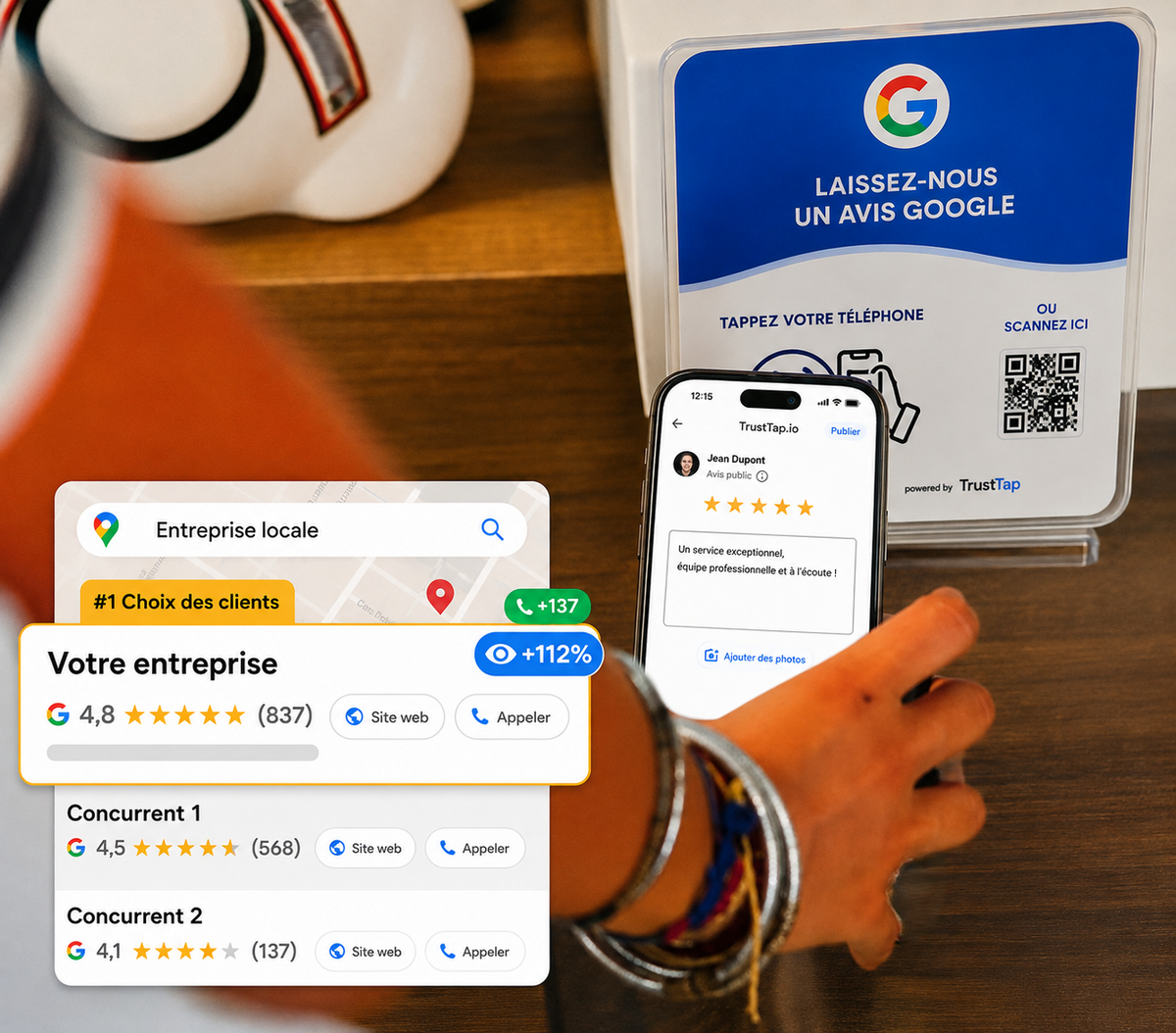
Direct links remove several steps compared to manually searching for a business, which is why many ecommerce and local businesses provide them at checkout, on packaging, or through a physical prompt at the point of sale. Some businesses use a Google review NFC plaque on a counter or packaging insert so customers can tap their phone and land on the review box instantly, without typing anything into a search bar. This is particularly useful for in-person retail and hospitality businesses where customers are ready to leave feedback on the spot but might not think to search for the business later.
If you run a business and want to understand how review collection fits into your broader local search presence, the Google local visibility guide covers how reviews interact with other ranking factors on Google Business Profiles.
Edit, Delete, or Troubleshoot Your Google Review
Google reviews are not locked in once posted. You can go back and adjust or remove your feedback at any time.
How to Edit a Review
-
Open Google Maps and sign in to the Google Account you used to post the review.
-
On desktop, open the menu and select Your contributions → Reviews. On mobile, tap Contribute → View your profile → See all reviews.
-
Find the review you want to change and select the three-dot menu next to it.
-
Select Edit review.
-
Update your star rating, written review, or photos, then select Post to save your changes.
How to Delete a Review
-
Open your review history in Google Maps using the same steps above.
-
Find the review you want to remove.
-
Select the three-dot menu next to the review.
-
Select Delete review and confirm the deletion.
Common Reasons a Review May Not Appear Immediately
It is normal for a review to take a little time to show up publicly. A few common reasons include:
|
Possible Cause |
What It Means |
|---|---|
|
Automated review checks |
Google runs new reviews through automated systems before they display publicly, which can create a short delay. |
|
Caching or sync delay |
The business listing you are viewing may be showing a cached version of the page that has not refreshed yet. |
|
Account or profile issue |
Reviews posted from accounts with limited activity or incomplete profile information may take longer to process. |
|
Wrong business listing |
If there are duplicate or similarly named listings, your review may have been posted to a different profile than intended. |
|
Temporary app or browser glitch |
Refreshing the page, restarting the app, or checking again later usually resolves display issues. |
If your review still has not appeared after checking these possibilities, try confirming you posted it on the correct business listing, and check that you are logged into the same Google account you used to submit it. If you want to double check your review history across the listings you have interacted with, our guide on how to see your reviews on Google walks through where that history is stored in your Google account.
Ultimately, leaving feedback is meant to be a quick, low-friction process for the customer while giving the business useful, public social proof. Whether you search on Google, open Maps directly, or tap a card or link a business hands you at checkout, the steps to leave a google review stay largely the same: sign in, find the right listing, choose a star rating, and post your comments. For businesses looking to make this step easier for customers in person, tools like a physical NFC prompt at the counter can turn a satisfied visit into a posted review with far less friction than asking customers to search for the listing themselves.
Frequently asked questions
Can you leave a Google review without a Google account?
No, you must have a Google account to write a review. Google requires users to sign in to prevent spam and ensure the authenticity of the feedback. If you do not have a Gmail address, you can still create a Google account using your current non-Gmail email address to submit your review.
Can I leave a Google review anonymously?
You cannot post reviews anonymously on Google. Your public Google profile name and profile picture will appear alongside your rating and written feedback. If you prefer not to share your real name, you can update your Google account name before submitting the review, but the review itself will always display whatever name is on your active account.
Can a business delete a negative Google review you left?
Businesses cannot directly delete or remove reviews left by customers. However, if a review violates Google policy, such as containing spam, harassment, or fake content, the business owner can flag and report it to Google. Google will then evaluate the review and remove it if it violates their terms of service.
Can I write a Google review using my mobile phone?
Yes, you can easily submit a review using your mobile device. You can open the Google Maps app or use your mobile web browser to search for the business. Once you select the business profile, tap on the reviews tab and select the rating stars to start writing your feedback.
How do I find and view my past Google reviews?
You can view all your previously submitted reviews by opening Google Maps on your computer or mobile device. Open the menu and click on the contribute option, then select reviews. From this section, you can see all your active ratings, read your written comments, and choose to make changes or updates to them.
Recommended products